

Pairon · private beta
OpenCode team collaboration with Pairon
Use OpenCode with your team in a shared Pairon room. Compare public session links with live collaboration, set permissions, and review the work together.
By Pairon · Updated
To collaborate with OpenCode in Pairon, connect a computer where OpenCode is available, choose that computer’s lane, and invite teammates into the conversation. Collaborators can contribute instructions; Viewers can follow the work. The computer owner controls which folders and permissions the agent can use.
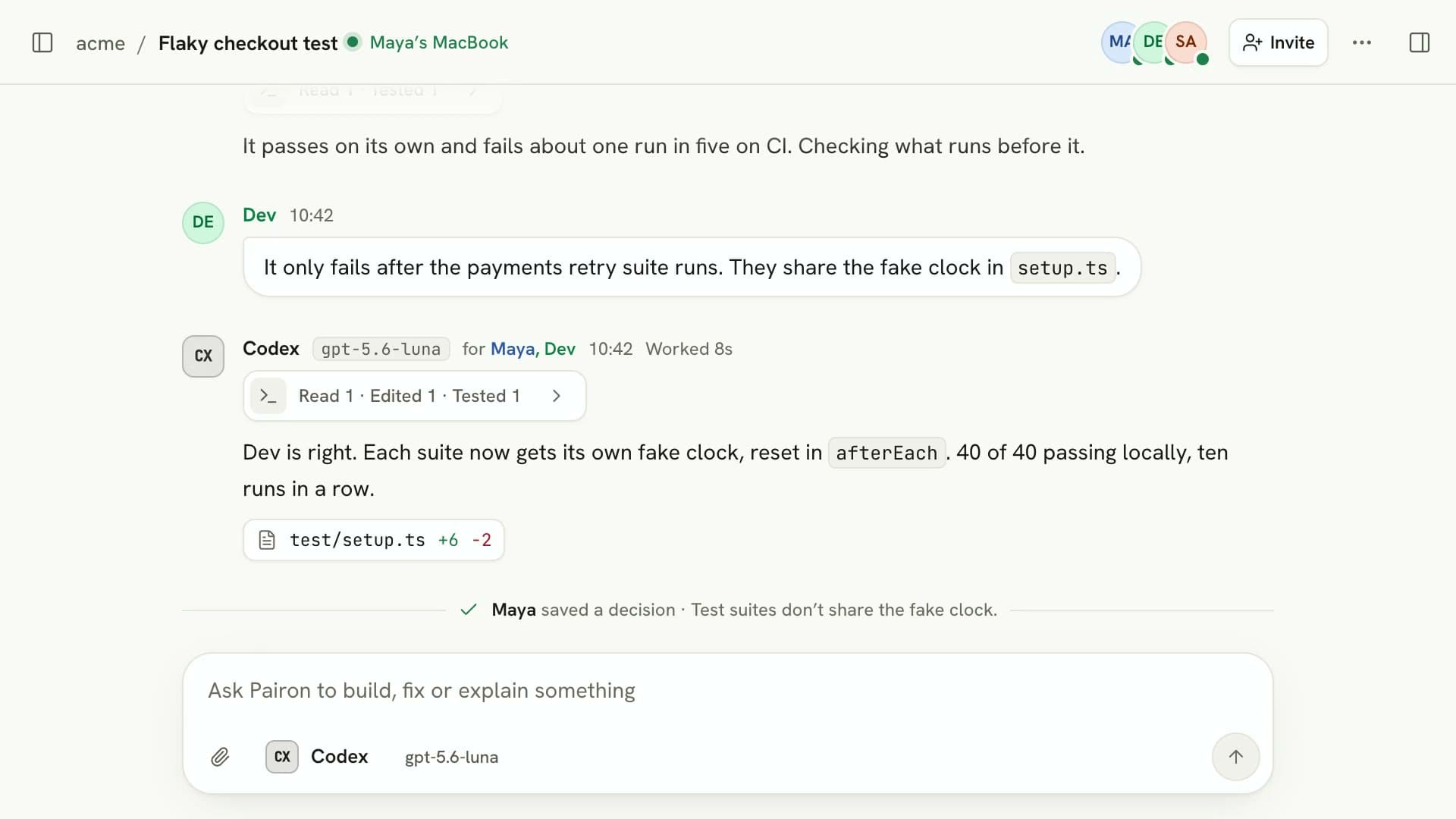
Choose a shared room or a public session link
OpenCode’s built-in sharing creates a public conversation link. Its documentation says that anyone with the link can read the shared history, and that manual sharing is the default. That is useful when you want to show a session to someone else.
A Pairon room lets invited teammates contribute while a connected agent works. Choose a room when a second developer needs to add a constraint, ask a follow-up, or review the result during the task. A public transcript is enough when your goal is to show what happened.
| Workflow | What to choose |
|---|---|
| Show an OpenCode session | Use OpenCode sharing after reviewing what the transcript contains. |
| Work on a task together | Use a Pairon conversation with a connected OpenCode lane and appropriate participant roles. |
| Split independent tasks | Use separate Pairon lanes with different scopes and checkouts, then review the integrated result. |
Start with one bounded task
The first shared task should have an observable result, such as reproducing a failing test. Ask OpenCode to inspect the relevant code before editing, and have your teammate add the constraint that matters to the change. Keep one person responsible for deciding when the result is ready.
- Connect the computer that has the project checkout and OpenCode installed.
- Create a Pairon conversation and select its OpenCode lane.
- Invite a teammate as a Collaborator to contribute, or as a Viewer to observe.
- State the failure, the intended behavior, and the files or interface that should stay unchanged.
- Read the proposed change together and run checks that cover the failure.
- Save the decision and any remaining work before switching tasks.
Inspect why checkout sends the same request twice after a timeout. Explain the retry path before editing. Keep the existing public API. My teammate will add the idempotency constraint. After the fix, show the diff, the checks you ran, and any case we still need to test.
Illustrative instruction; adapt it to your project.
Check agent permissions and computer access
OpenCode supports allow, ask, and deny permission rules. Those agent settings and Pairon’s computer access rules both matter. A conversation role does not give someone a new folder permission or unrestricted access to another person’s computer.
An instruction on a teammate’s lane uses the agent account on that computer. Agree on who can send work there and which project folder is allowed. Use the computer owner’s approval flow when the task needs higher permissions.
Pairon stores conversation text, instructions and agent replies. File contents, diffs and terminal output are relayed live rather than stored. Review the published security details before choosing a workflow for your project.
Hand off context and review the actual result
A useful handoff names the goal, the files that changed, the checks that passed, and the next unresolved question. Pairon’s shared conversation, continuation brief and project memory help another lane pick up the work. The next agent still needs to inspect the current checkout.
Pairon also supports Claude Code and Codex. Switching agents does not mean the providers receive identical context or behave the same way. Keep the acceptance criteria visible and assess each result.
Pairon’s published memory benchmark covers Codex. It does not establish an OpenCode cost saving or a measured team speedup. Start with a small task and judge the workflow by the quality of the reviewed change.
Common questions
Is an OpenCode share link the same as a live team room?
OpenCode’s documented share feature publishes conversation history through a link. A Pairon conversation allows invited people with the appropriate role to send instructions to a connected agent lane while the work happens.
Can my teammate use OpenCode on my computer through Pairon?
They can send an instruction to your connected lane when their role and your computer settings allow it. That instruction uses the account on your computer and remains subject to your folder and permission rules.
Can we continue an OpenCode task with Claude Code or Codex?
Pairon supports choosing another supported agent or connected computer for a later instruction. Keep a clear continuation brief and have the next agent inspect the current files before it changes them.
Sources and product details
Written by Pairon from the product behavior described below. Examples illustrate a workflow; they are not customer results.